 indiely
Guides · FIELD NOTES
Steam Deck Verified: How to Get Your Indie Game Rated Verified
Steam hardware compatibility ratings explained, Valve criteria for Steam Deck Verified, how the review works and the fixes that most often make the difference.
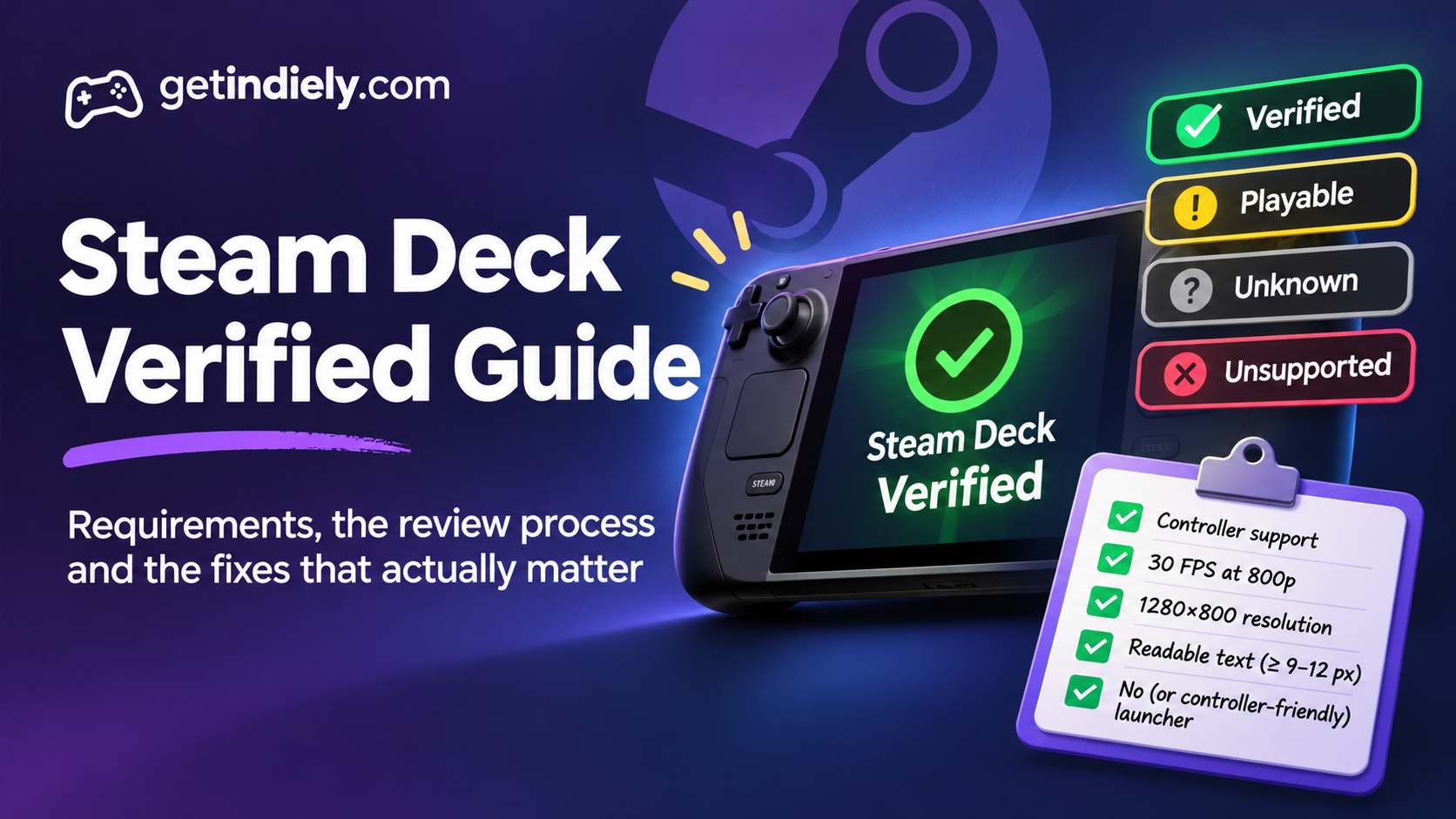
Many players now check one badge before they buy: does this game run well on Steam Deck? A "Verified" rating tells them they can play on the couch or on the go without fiddling with settings. A rating of "Unknown" or "Playable" can make them hesitate. For a small team, getting Verified is often a matter of a few specific fixes.
This guide explains Steam's hardware compatibility ratings, Valve's criteria for Verified, how the review works and the fixes that most often make the difference.
The four compatibility ratings
According to Valve's Steam hardware compatibility documentation, each game gets one of four ratings, shown in the store and in players' libraries:
| Rating | What it means |
|---|---|
| Verified | The game passes all compatibility checks and works without the player configuring anything |
| Playable | The game works, but may need manual steps, such as choosing a community controller layout, opening the on-screen keyboard or using the touchscreen in a launcher |
| Unsupported | The game doesn't work because of incompatibilities with Proton or specific hardware |
| Unknown | The game hasn't been through the compatibility review yet |
Players can filter their library by compatibility, and your store page shows a Steam Deck compatibility section. Valve's process now also covers other SteamOS hardware, such as Steam Machine, and each device gets its own rating.
What Valve checks for Verified
Input
- Full controller support with the default configuration, without changing settings.
- Matching button prompts. On-screen glyphs must match the active input device, and mouse or keyboard prompts shouldn't appear when they aren't being used.
- Controller-friendly text entry. If players need to type, use the Steamworks text input API or an equivalent controller-friendly system.
Performance
- The default settings must reach a playable frame rate: Valve's target is 30 FPS at 800p on Steam Deck.
Display (Steam Deck)
- Resolution: support a Steam Deck resolution, preferably 1280×800, or 1280×720.
- Readable text: text must be readable at about 30 cm. Valve's minimum is 9 pixels tall at 1280×800, and it recommends at least 12 pixels.
System support
- No unsupported-system warnings about the Linux distribution or GPU.
- Launchers must work with a controller, and Valve recommends not forcing players through a launcher at all.
- Proton: games without a native Linux build run through Proton. Crashes or Proton-specific performance problems can lead to an Unsupported rating until they're fixed.
How the compatibility review works
- Valve does the testing, on Steam Deck and other Steam hardware.
- Games enter the queue through automatic selection, because Valve considers them important, or through a manual review request in Steamworks (not yet available to every partner).
- Your game must pass the standard build review first.
- You get a week to look at the results in Steamworks before they're published. If you do nothing, they're published automatically after about a week.
- Your options: publish early, push a new build and request another review, or dispute the results through the partner site.
Getting re-reviewed after a fix
Ratings aren't permanent. Valve says it will retest whenever there's new information, such as a new build, your own QA reports or player data. Submit a support ticket after your update. Valve may also retest when a new Proton version is released or when it adds new tests.
The fixes that most often matter
Based on Valve's criteria, these are the changes worth checking first (our prioritization):
- Use Steam Input, so button prompts update automatically for the device being used. Valve recommends the Steam Input API for this.
- Ship a default controller configuration that covers every action in the game.
- Remove or fix the launcher. If you need one, make it fully navigable with a controller.
- Support 1280×800 and check every menu at that resolution.
- Enlarge small text, or add a UI scale option.
- Set sensible default graphics so the game reaches 30 FPS without the player touching settings.
- Handle text input with the Steamworks text input API wherever players name a save, a character or a world.
Steam Deck Verified checklist
- Full controller support with the default configuration.
- Button prompts match the active device; no keyboard prompts when using a controller.
- Text entry works with a controller.
- Default settings reach 30 FPS at 800p on Steam Deck.
- 1280×800 (or 1280×720) is supported.
- Text is at least 9 px tall at 1280×800, ideally 12 px or more.
- No launcher, or a launcher fully usable with a controller.
- No unsupported-system warnings; no Proton crashes.
- You've requested a re-review after fixes, and announced them.
Steam Deck compatibility FAQ
How do I get my game Steam Deck Verified?
Meet Valve's criteria for input, performance, display and system support, then go through Valve's compatibility review. Games enter the review automatically or through a manual request where available, after passing the standard build review.
What does "Playable" mean on Steam Deck?
The game works, but players may need to do something manually, such as choose a controller layout, open the on-screen keyboard or use the touchscreen.
What's the minimum text size for Steam Deck Verified?
Valve's minimum is 9 pixels tall at 1280×800, and it recommends at least 12 pixels, so text stays readable at about 30 cm.
Can I get my game re-tested after fixing issues?
Yes. Submit a support ticket after your update. Valve says it retests whenever there's new information, such as a new build.
Sources
More from the Journal

How to Write a Steam Short Description That Makes Players Scroll
Valve rules, a simple formula and before-and-after examples for writing a Steam short description that tells players what they will actually do.
Read the article
How to Choose Steam Tags for Your Indie Game (and Order Them Right)
How Steam tags work, how to choose and order your top 20, and how to check them against similar games. Based on Valve docs, with a worked example.
Read the article
How to Read Your Steamworks Traffic Report (Without Panicking)
A plain-English guide to the Steamworks traffic report: what impressions, visits and CTR really measure, and how to turn them into weekly decisions.
Read the article