 indiely
Launch · FIELD NOTES
Steam Playtest Guide: How to Test Your Game With Real Players
What Steam Playtest is, how it differs from demos and beta keys, how to set one up, how to choose who gets in and how to end a test without losing goodwill.
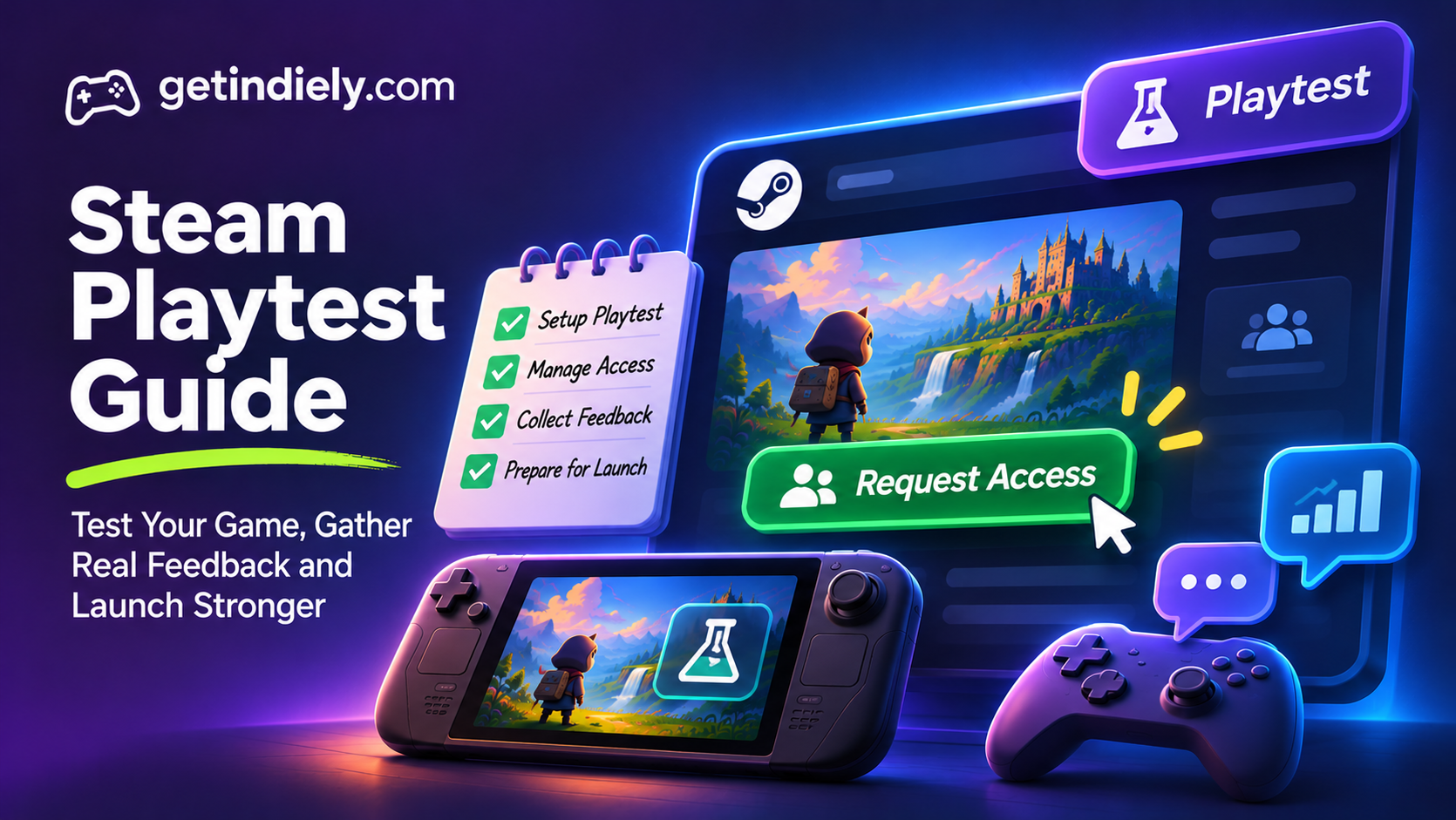
Before you launch, you need strangers playing your game: to find bugs, test servers and see whether the fun actually comes through. Handing out keys by email works for a few dozen testers, but it doesn't scale, and keys can leak or get resold. Steam Playtest solves both problems, for free.
This guide explains what Steam Playtest is, how it differs from other ways of sharing your game, how to set one up and how to run it without hurting your launch.
What Steam Playtest is
Valve's Steam Playtest documentation calls it "a free, low-risk way to get playtesting data" without "stressing out about Steam keys, user reviews, or wishlists." In practice:
- It's a separate "child" app tied to your main game, with its own App ID.
- Players sign up on your store page. A "Request Access" section appears on your base game's page. There's no separate Playtest store page.
- You decide who gets in: in batches, automatically, or only in certain countries.
- It doesn't touch your wishlists. Joining or leaving the Playtest doesn't affect a player's wishlist, and players who sign up can still wishlist or follow the main game.
- Playtesters can't review your game. Valve says Playtest-only customers "cannot review your actual game."
Playtest vs demo vs beta keys
| Steam Playtest | Demo | Beta keys | |
|---|---|---|---|
| Purpose | Testing an unfinished game at scale | Marketing: letting players try before they buy | Small, hand-picked groups (press, close testers) |
| How players get it | Request access on your store page | Free download for everyone | Key sent by you |
| Reviews | Playtesters can't review your game | Demo can have its own reviews if it has a store page | Key reviews don't count toward your score |
| Scale | Large; Valve mentions requests of "more than 50,000 keys" as an open beta | Unlimited | Release State Override keys are limited to 2,500 |
A simple rule: use Playtest to learn, and a demo to sell. Many games do both: a Playtest months before launch, then a polished demo for Steam Next Fest.
How to set up a Steam Playtest
- Get your Coming Soon page live first. Valve recommends it, so playtesters can find, wishlist and follow your game.
- Create the Playtest app from your base game in Steamworks.
- Add the required assets. The Playtest review checklist only covers capsule images and icons, plus the required library and community assets.
- Upload a build to the Playtest app.
- Turn on signups in the Special Settings tab of Edit Store Page, so the Request Access section appears on your store page.
- Set the Playtest to "Playable" when you're ready to let people in.
Choosing who gets in
Valve offers several access options:
- Limited (default): you admit players in batches as you have capacity. "Players are selected randomly from the pool of signups."
- Open: everyone who requests access gets in automatically. Switching from limited to open starts admitting pending players, generally within a few minutes.
- By country: you can limit access to specific countries, which helps manage server capacity and latency.
- Friend invites (experimental): each player can invite 1, 2 or 3 friends, who must have been Steam friends with them for at least 30 days.
Running a playtest players remember well
- Announce it. Valve says players aren't notified automatically when a Playtest becomes playable, so post an announcement and share it on social media. See our guide to Steam events and announcements.
- Set dates and expectations. Tell players how long the test runs, what you're testing and whether progress will carry over.
- Make feedback easy. A Discord channel, a short survey link in the main menu or an in-game bug-report button all work. Ask specific questions.
- Watch, don't just read. Streams and videos of your playtest show where players get stuck far better than written feedback.
- Never charge for access. Valve is clear: "It's not OK to charge customers to access your Steam Playtest." Playtest keys must never be sold.
Ending a playtest
To stop a test, Valve suggests disabling store-page signups first, then setting the Playtest to "Not Playable". Keys that were already granted aren't revoked. A full reset removes every participant and can't be undone, so Valve asks you to "be thoughtful about this action!"
Tell players before you end the test, and thank them. A playtest community that feels respected often becomes your first wave of wishlists, reviews and word of mouth at launch.
Steam Playtest checklist
- Your game is announced and the Coming Soon page is live.
- Playtest assets (capsules, icons, library art) and a build are uploaded.
- Signups are enabled on your store page.
- You've chosen limited, open or country-limited access.
- An announcement explains dates, goals and how to give feedback.
- A feedback channel is ready before players arrive.
- You'll warn players before switching the Playtest to "Not Playable".
Steam Playtest FAQ
Is Steam Playtest free?
Yes, for developers and players. Valve says it's not OK to charge customers for access to a Steam Playtest.
Can playtesters leave reviews on my game?
No. Valve says players who only have Playtest access cannot review your actual game.
Does Steam Playtest affect my wishlists?
No. Joining or leaving the Playtest doesn't affect a player's wishlist, and playtesters can still wishlist or follow your main game.
Are Steam Playtests under NDA?
No. Valve notes that playtest participants aren't under nondisclosure agreements. For confidential testing, you'd need a hidden test with your own registration and NDA process.
Sources
More from the Journal
How to Read Your Steamworks Traffic Report (Without Panicking)
A plain-English guide to the Steamworks traffic report: what impressions, visits and CTR really measure, and how to turn them into weekly decisions.
Read the article
How to Optimize Your Steam Capsule (2026)
Design Steam capsule art that still reads at 120 × 45 px: Valve's capsule rules, five common mistakes, and a simple thumbnail test before launch.
Read the article
How Steam Launch Visibility Works (and How to Make the Most of It)
What Steam actually does for a new release, which factors help visibility according to Valve, which do not, and how to prepare for launch week.
Read the article