 indiely
Store Page · FIELD NOTES
Steam Library Assets: Sizes, Rules and How to Make Them Look Great
Every Steam library asset explained: exact sizes for the library capsule, header, hero and logo, Valve text rules and a simple production workflow.
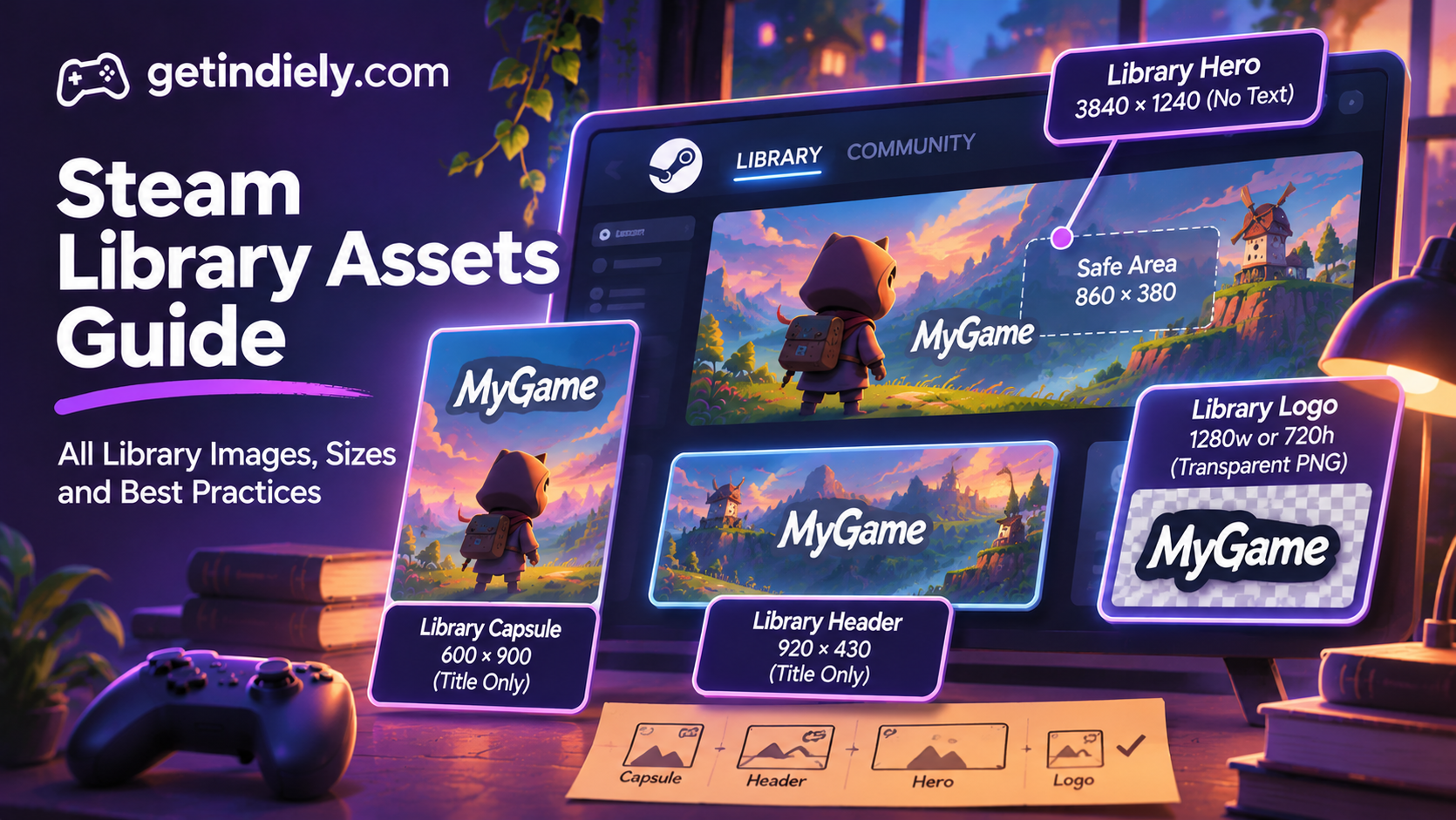
Most store-page advice stops at the capsule. But once someone buys or installs your game, they see it through a different set of images: the Steam library assets. These are the art players look at every time they open their library, and they're required before launch.
This guide covers every Steam library asset, the exact sizes Valve asks for, the text rules that trip developers up, and how to make the library page look as good as your store page.
Steam library assets at a glance
Valve's library assets documentation lists four required images. Library assets are "displayed in customer's libraries and in the community."
| Asset | Size | Where it appears | Text rule |
|---|---|---|---|
| Library Capsule | 600×900 px (a 300×450 version is generated) | Library overview and collection views | No text beyond the game's title |
| Library Header | 920×430 px | Places in the library such as Recent Games | No text beyond the game's title |
| Library Hero | 3840×1240 px (a 1920×620 version is generated) | Top of the game's library details page | No text at all |
| Library Logo | 1280 px wide and/or 720 px tall, transparent PNG | Placed on top of the hero image | Only your logotype (and an optional logomark) |
The store capsules are a separate set with their own sizes. Our Steam capsule size guide lists both side by side.
The library capsule: your vertical cover
The 600×900 library capsule is the closest thing Steam has to a box cover. It fills the grid in players' libraries and collections, usually next to dozens of other games. Valve asks for a "graphically-centric" image, with no quotes or other text beyond the title.
Practical tips (our recommendations):
- Design for a tall frame. Don't stretch your horizontal key art. Recompose it so the main character or focal point fills the vertical space.
- Keep the title large and near the top or bottom. Library grids are often shown small, so a thin logo becomes unreadable fast.
- Match your store capsules. Players who bought the game because of your main capsule should recognize the same art in their library.
The library header
The 920×430 library header appears in several places in the library, including Recent Games. If you don't set one, Steam uses your store header capsule instead. Valve suggests using artwork similar to the library capsule or the store header capsule, with the same no-extra-text rule.
The hero and logo: your library details page
The hero image and logo work as a pair at the top of your game's library page. Valve notes that they "move independently when the page is scrolled, creating a subtle parallax effect." Three rules matter most:
- No text in the hero. "This image cannot include any text." The logo is a separate layer.
- Respect the safe area. The hero template has a centered safe area of 860×380 px that stays uncropped when the Steam window is resized. Valve's example: a main character's face "should be entirely in the safe area or risk being cropped."
- Logo only in the logo file. "Aside from your game's logotype, there should be no other words in this asset," and the PNG needs a transparent background.
After uploading, you choose where the logo sits using Valve's preview tool: bottom left, centered top, centered middle or centered bottom. Pick the position where the logo is "both visible and legible against the hero graphic background," as Valve puts it.
A simple workflow for library assets
- Start from layered key art with the logo, characters and background on separate layers.
- Export a transparent logo at 1280 px wide (or 720 px tall for a stacked logo).
- Build the hero at 3840×1240 with no text, keeping faces and focal points inside the 860×380 safe area.
- Recompose a vertical capsule at 600×900, with the title as the only text.
- Make the 920×430 header, ideally close to your store header capsule.
- Preview everything in Steamworks, set the logo position, and check the library page in the Steam client once your store page is public.
Valve provides templates for all four assets in its documentation, which saves guessing at safe areas.
Library assets checklist
- Library capsule 600×900, title as the only text.
- Library header 920×430, title as the only text.
- Hero 3840×1240 with no text, focal point inside the 860×380 safe area.
- Logo as a transparent PNG, 1280 px wide or 720 px tall, logotype only.
- Logo position chosen in the preview tool and legible on the hero.
- All four checked in the Steam client after your store page goes public.
Library assets come after the store capsules. If you haven't finished those, start with our guide to optimizing your Steam capsule, and see the Steam store page checklist for everything else your page needs.
Steam library assets FAQ
What size is the Steam library capsule?
600×900 pixels. Steam automatically generates a 300×450 version from the larger file.
Can I put text on the Steam library hero image?
No. Valve says the hero image cannot include any text. Your logo goes in a separate transparent PNG that Steam places on top of the hero.
Are Steam library assets required?
Yes. Valve lists the library capsule, header, hero and logo as required. If the hero and logo are missing, Steam shows a store screenshot with plain text instead.
Why can't I see my library assets in the Steam client?
Valve says library assets are only visible for apps with a published store page. They appear once your Coming Soon or release page is public.
Sources
More from the Journal
How Steam Launch Visibility Works (and How to Make the Most of It)
What Steam actually does for a new release, which factors help visibility according to Valve, which do not, and how to prepare for launch week.
Read the article
Should You Release Your Indie Game Near GTA 6? A Practical 2026 Launch Guide
GTA 6 will dominate gaming attention, but that does not automatically make November a bad launch window for every Steam game. Use this practical guide to evaluate audience overlap, visibility risk, wishlists, press availability, and launch readiness before choosing your release date.
Read the article
Steam Playtest Guide: How to Test Your Game With Real Players
What Steam Playtest is, how it differs from demos and beta keys, how to set one up, how to choose who gets in and how to end a test without losing goodwill.
Read the article